 David
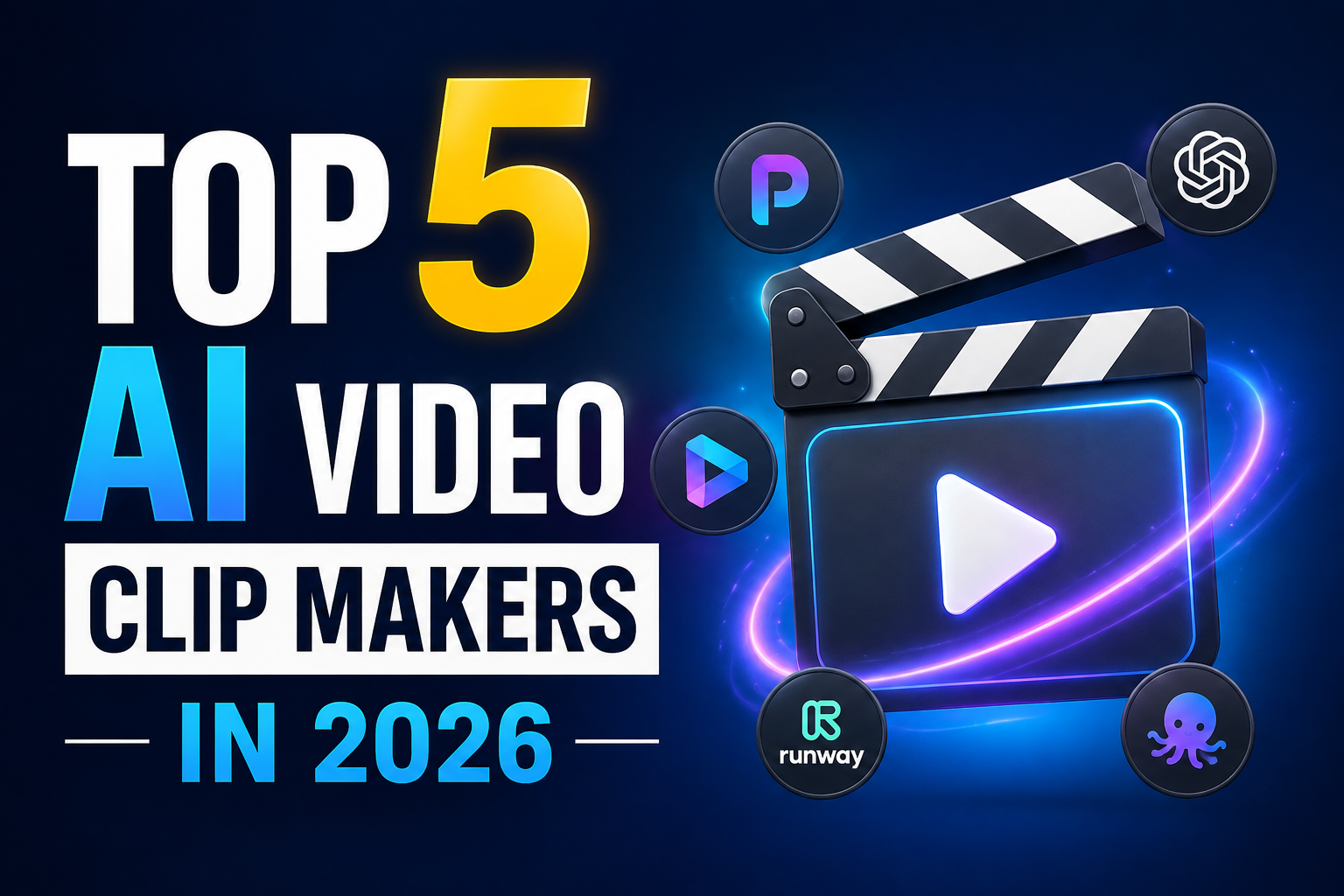
DavidToday, content makers are producing 10 pieces of short-form content from a 1-hour video. Those who are doing it by hand are already behind three hours. In this content, you would learn about Top 5 AI Video Clip Makers in 2026.
The internet has just come to love short-form video, and it’s not just me. These apps are all about the volume, consistency, and speed; as a result, TikTok, Instagram Reels, and YouTube Shorts all pay attention to how much you post, how regularly you post, and how quickly you post. The issue is now converting long videos into clips that are polished, scroll-stopping, and that used to take a professional editor and half an hour.
Not anymore.
AI video clip generators now can produce videos in mere minutes, rather than hours. They scan your video, detect the best moments, auto-caption, reframe for vertical, and export video ready to publish without having to touch a timeline.
I’ve tried the best ones that are out there at this time. Here are the five best that really work.
- Why AI Clip Makers Changed Everything
- 1. OpusClip: Best Overall for Viral Short-Form Clips
- 3. Description: Best for Podcast and Talking-Head Content
- 4. Choppity: Best Budget Option for Talking-Head Creators
- 5. Kapwing: Best Free Option with True AI Features
- How to Pick the Right AI Video Clip Maker
- Frequent mistakes to avoid:
Why AI Clip Makers Changed Everything
Let me put this in perspective before we get into the tools.
With the right short-form video tools, the production time can be reduced by as much as 70-80%. Not a minor one, that. Publishing is once a week, publishing every single day.
In 2026, only Opustool reports having 15 million users. This is the number you should know when you consider the direction of content creation.
The basic process is extremely easy to understand. Post your video—a podcast, webinar, vlog, livestream, or screen recording. The AI video clip generator analyzes your video and cuts out the most important parts. Most of the tools automatically add auto-captions. Then you download clips and publish them to your social networks.
That’s it. One long video in. Ten short shots off.
These are the 5 tools that are doing this best now.
1. OpusClip: Best Overall for Viral Short-Form Clips
If you are only using one tool in this list, choose OpusClip.
OpusClip is an AI video repurposing tool for converting long videos into short clips. It detects cut-worthy frames in the source video, prepares video for vertical and square vertical videos, provides closed captioning, and streamlines the process of creating short-form videos. This product is most valuable for podcasters, YouTubers, livestreamers, educators, marketers, agencies, and media teams that already make long-form content and desire to create more short-form content without having to sift through every minute.
What sets OpusClip apart from all the others is its virality scoring. The AI is not just picking random moments; it’s determining which ones have the greatest chance of performing well on social media. Hook strength and emotional pull, quotable statements, and pacing. It is designed to detect what really breaks the scroll.
OpusClip is best at virality scoring and auto-reframing. You don’t get 45 mediocre clips when you upload a 45-minute podcast. It brings to the surface the 8-10 moments that a human social editor would choose.
The auto-reframing is also awesome. If you are showing 2 speakers on screen in a wide landscape, OpusClip automatically centers the 2 speakers in the vertical format. No manual keyframing. No guessing.
Real example: Record a 60-minute interview podcast. It is then fed into OpusClip, which scores all the possible clips and returns the top 12 ranked according to viral potential with captions burned in. You check, make some small adjustments as needed, and publish. A three-hour editing job can be completed in as little as 15 minutes.
What it replaces: Manual selection of clips, manual editing of the timeline, caption making, changing aspect ratio, and guessing when clips will perform.
Pricing: OpusClip has a free plan including 60 credits per month; Starter is priced at $15/month, Pro at $29/month, and Business is custom priced.
The no-cost plan really is helpful for testing. The only real restriction is the watermark feature on exports; upgrades to Starter are available when ready for professional publication.
2. Vizard: Best for Teams and High-Volume Repurposing
Vizard is best suited for teams and high-volume reuse.
Vizard AI is an AI video editor and clip generator that is centered on one idea: the minimum effort to split a long video into a stack of social-ready short clips. It is powered by AI, which can transcribe, score moments, and generate viral clips with minimal effort. Attach a YouTube URL, drop in a Zoom recording, upload a podcast or webinar, or send in a raw MP4. The AI engine analyzes audio and visuals, identifies the viral moments, generates short clips, adds captions, reframes to 9:16 vertical, and provides you with a draft to publish the same day!
The only difference between Vizard and OpusClip is the collaboration layer. Vizard is focused on video repurposing via teams, team collaboration features, text-based editing, and AI detection. It has the advantage of workspaces that can be shared with others and approval workflows.
This is a big deal for agencies that have multiple accounts or a media team with editors, reviewers, and approvers. Vizard eliminates the need to move from one file to another, without any files getting lost in emails and Slack conversations.
According to the Vizard homepage, over 10 million creators and businesses have utilized the item up to now by April 2026. Some of the customer logos are from Google, Stanford, Ubisoft, or Morningstar. It’s not for the hobbyists; it’s for business content operations.
The text editing interface is also clean. You work on the transcript instead of on a timeline. When you delete the sentence, the video footage will be deleted as well. This is easily learned by non-editors in minutes.
Real Sample: A marketing team hosts three webinars each week. They upload each recording to Vizard, which the AI clips up; a junior editor takes a look and approves them in the shared workspace, and the social manager publishes without ever touching traditional editing software.
Replaces: Manual repurposing processes, back-and-forth file sharing, costly editing agency retainers, and time-consuming approval processes.
The price is free (limited) to $20/month to 120 minutes and then $48/month to 600 minutes.
If you need to do a full cut to print repurposing, Vizard is a better option for the purists.
3. Description: Best for Podcast and Talking-Head Content
Descript takes a unique approach to video editing compared to anything else on this list. When someone is the right creator, it’s really the most potent one.
Descript is the best option for podcasters, talking-head YouTubers, and anyone whose content is primarily spoken word. You import a video, Descript transcribes it, and then you edit the words in the transcript to cut, rearrange, or remove video footage. It features filler word removal, screen recording, direct publishing to YouTube, TikTok, and LinkedIn, and AI voice cloning (Overdub).
This is a major boon to anyone who ever found themselves in an editing timeline with no idea where a speaker said something. Search the transcript in Descript as a document. Find a word and highlight and delete it. The video will self-edit.
The fact that there isn’t a single rube for the sake of having to remove an entire filler word saves an absurd amount of time. Every “um” and “you know” is taken out of your podcast in one click, thanks to Descript. What was once “scrub” through all the audio is now one of the boxes.
Descript is a desktop-based tool for editing video that works like a word processor: you cut and paste the transcribed text, which makes it one of the best tools for editing spoken word and remote video intake.
The honest exception: If your content is more visual than verbal, as with gaming, travel vlogs, cinematic videos, or music videos, then Descript isn’t the right tool for you. If you are creating more visually complex content, skip it. It’s ideal for solo creators and small teams that record spoken-word content but don’t have time to learn Premiere Pro.
Real example: A podcaster hosts a 90-minute show with two guests. They upload to Descript, which is AI transcription software, which does all the transcription, highlights sections they don’t like, deletes all the fillers in one click, chooses the three best moments for short clips, exports, adds captions, and publishes. The entire editing process takes only 30 minutes rather than 3 hours.
What it replaces: Manual timeline editing, transcript tools, separate transcription services, filler word hunting, and selection of clips from long recordings.
Pricing: Plans begin at $16/month on an annual basis, with a limited free tier. The annual cost of the Creator plan is $24 per month.
4. Choppity: Best Budget Option for Talking-Head Creators
Choppity doesn’t do as much as the above tools, but in what it does, it does it well and not without splintering your wallet.
Choppity is a specialist in face-tracking for talking-head content. It will help keep the speaker centered and properly framed while they move around, plus give them auto-captions. Its strengths include excellent face-tracking and being budget-friendly.
The face-tracking is really cool. Will be seen instantly by podcasters, teachers, coaches, and anyone else who speaks in front of the camera. Speakers who lean forward, turn their heads, or move their hands in a wide range are difficult for the majority of tools. Choppity will automatically track and recenter frame-by-frame.
The AI in Choppity examines sound, visuals, emotions, speech, and music to determine just what you’re searching for. With the ability to edit a text document, you can edit videos in Choppity. It automatically censors any bad words to prevent problems with social media algorithms and adds subtitles, which you can customize with any font, color, and animation, and more.
This is a useful but small feature for creators posting on family-friendly platforms; the profanity censoring is something that has its uses. A single check instead of manual review.
Choppity automates video editing, ranging from AI-driven clip selection to captions, re-framing, censoring obscene content, transcript editing, and more. Designed for podcasters, creators, marketers, advertisers, and sales and training teams.
Real example: A business coach does hour-long Zoom sessions with clients. No editing skills to learn are required, as they upload to Choppity, the AI identifies the most valuable moments, maintains the coach’s face in the correct frame all the time, and also adds styled captions to the video and exports clips for LinkedIn and Instagram.
What it replaces: manually selecting clips, creating captions, face-reframing in editing software, and profanity before publishing.
Pricing: $10/month for 10 videos, $25/month for 30 videos, and $50/month for 80 videos.
This per-video pricing is actually great for once-a-month creators. Not paying for minutes just for its unmade videos.
5. Kapwing: Best Free Option with True AI Features
The majority of “free” tools are free only in the sense of the word. You can really use Kapwing for free.
Kapwing is a browser-based video editor that features a dedicated AI-based video clip maker, making it one of the most-used free video editors. It will automatically identify interesting moments from YouTube videos, remove filler words, generate audiograms, and translate 100+ languages without any installation.
The browser approach is important. No downloads. No compatibility issues. No storage is consuming the laptop. You open a tab, upload your video, and work. As on Windows, Mac, or Chromebook.
Kapwing is a cloud-based video editing tool that allows for collaboration, subtitles, resizing, and trimming in real time. It is designed for social video editing and is optimized for fast and collaborative social video clips.
When you’re creating for an international audience, the ability to translate the content into 100 languages is a serious feature. Create a video for the English-speaking audience and upload a translation of it to the Spanish, French, Portuguese, and German language versions at the same time. This is a content multiplier that most people ignore.
The paid plans begin at $16 per month for Pro, which eliminates the watermark, extends the export length, and unlocks advanced AI features such as auto-clip generation and background removal.
The biggest restriction on free exports is the watermark. It’s okay for personal projects and testing workflows. Upgrading to Pro is a better option for professional publishing.
Real-life scenario: A content creator wants to transform a YouTube video for use across several different mediums without needing to know a complicated piece of software. They copy and paste the YouTube link into Kapwing, let the AI select the best moments, upload captions to multiple markets in 100+ languages, and export. No software to install, no cost, and done in a browser tab.
It replaces subscriptions to paid editing software, standalone transcription solutions, manual subtitle generation, and multi-language editing processes.
Pricing: This has a free plan. The pro is $16/month. The business tier is available up to $50 per month, a year.
How to Pick the Right AI Video Clip Maker
Here’s the straightforward decision-making process.
You are a podcast or talking-head maker: Describe the editing process, Choppity, if the budget is low and face tracking is important.
The platform is for high-volume output across multiple social networks: OpusClip for viral scoring and speed. Vizard if you’re a team and require collaboration.
You’re just starting or working on a budget: Kapwing’s free tier truly can take you further than other paid video tools. Upgrade to Pro when it’s time to remove watermarks.
You’re an agency that works with several clients—Vizard’s team workflows and approvals are designed for that.
For longer content, per-video pricing (such as Choppity) is a good option. Per-minute pricing (such as OpusClip and Vizard) charges for longer content. For those who record a lot of longer podcasts or webinars, 20 minutes or more, you’ll save 50-70% per video using per-video pricing.
Read that again before deciding on a plan.
Frequent mistakes to avoid:
Uploading low-quality audio. The accuracy of transcription is crucial to AI clip detection. Bad transcripts lead to bad clips, which translate to bad audio with background noise. Make a sound recording first.
Posting AI-generated video clips without editing them. Clips generated by AI tend to gather in a similar set of words, the same font, and similar hook formulas, and the AI gets tired. The tools are effective; the strategy does not scale at volume without human-in-the-loop curation. Prior to publishing, always preview your clips.
Not selecting tools based on fit with workflows. Adding more features doesn’t make it better if you don’t use them. To use the right tool for the job, and not because it is a pretty picture in a comparison chart.
Not paying attention to the free trials. All the tools listed below have a free plan or trial. Before spending any money, try it with your content and your practice.
Wrapping-Up
Long-form content is what you’re creating with. In 2026, it’s actually the short-form videos that are increasing your audience.
Advertisements


 David
David
![You ask your AI a simple question. It gives you a confident answer with specific details. Then you fact-check it. Everything's wrong. Welcome to AI hallucinations. The problem that makes you second-guess every response, even when the AI sounds completely certain. GPT-5 and Claude 4 are the most advanced language models available. But they still make things up. The question isn't if they'll hallucinate. It's how often, why, and what you can do about it. I've spent three months testing both models. Running identical prompts. Fact-checking responses. Tracking hallucination rates across different tasks. Here's what I found, which model is more reliable, and how to reduce hallucinations in both. The Hallucination Reality Check First, let's be clear about what we're dealing with. AI hallucinations aren't bugs. They're features of how these models work. They predict the next word based on patterns in their training data. Sometimes those predictions sound right but are completely wrong. Both GPT-5 and Claude 4 hallucinate. But they do it differently, in different situations, at different rates. Understanding these differences helps you choose the right model and use it correctly. GPT-5 Hallucination Patterns: What I Found GPT-5 is fast, creative, and confident. Sometimes too confident. Where GPT-5 hallucinates most: Specific facts and figures: Ask for statistics, dates, or numbers and GPT-5 will give you precise answers. Often wrong. I asked it for the population of mid-sized cities. It gave me numbers that were off by 20-30%. But it presented them with complete certainty. Recent events: Anything after its knowledge cutoff is a gamble. GPT-5 will fill gaps with plausible-sounding information rather than admitting uncertainty. Asked about a tech company's Q3 2024 earnings. It gave me revenue figures that sounded reasonable. All fabricated. Citations and sources: Request sources and GPT-5 will provide them. Book titles. Article names. URLs. Many don't exist. I tested this with academic research requests. About 40% of the citations it generated were completely made up. Real-sounding titles. Fake papers. Technical specifications: Product specs, API details, version features. GPT-5 blends what it knows with what sounds right. Asked about specific features in React 19. It listed capabilities that don't exist yet, mixed with real features. Where GPT-5 is reliable: General knowledge: Common facts, well-documented history, widely-known information. Here, GPT-5 is solid. Code patterns: Standard programming solutions and common implementations. It's seen millions of examples. Creative work: When accuracy doesn't matter, hallucinations don't hurt. Writing fiction? GPT-5 is fine. Conceptual explanations: How things work in general. Principles and concepts rather than specific facts. Hallucination rate in my testing: Factual questions: 25-35% contained at least one hallucination Technical details: 20-25% hallucination rate Recent events: 40-50% hallucination rate General knowledge: 10-15% hallucination rate Claude 4 Hallucination Patterns: What I Found Claude 4 takes a different approach. It's more cautious, more likely to express uncertainty, and generally more accurate on facts. Where Claude 4 hallucinates most: Obscure information: When dealing with niche topics or rare details, Claude sometimes fills gaps rather than admitting it doesn't know. I asked about a small regional festival. Claude gave me dates and details that sounded specific. Couldn't verify any of it. Connecting unrelated facts: Claude is good at reasoning, but sometimes makes logical leaps that aren't supported. Asked about correlations in dataset. Claude confidently explained relationships that weren't actually there. Completing patterns: When you give it partial information, Claude tries to complete it. Sometimes those completions are invented. Started describing a hypothetical product. Claude added features and specifications I never mentioned, treating them as real. Where Claude 4 is reliable: Factual caution: Claude often says "I'm not certain" or "Based on my training data" rather than making things up. This is huge. Reasoning through problems: When Claude shows its thinking process (extended thinking), hallucinations drop significantly. Admitting limitations: Claude is more likely to say "I don't have information about that" than to fabricate an answer. Technical accuracy: For well-documented technical topics, Claude is consistently more accurate than GPT-5. Hallucination rate in my testing: Factual questions: 15-20% contained at least one hallucination Technical details: 10-15% hallucination rate Recent events: 25-30% hallucination rate General knowledge: 5-10% hallucination rate Claude 4 hallucinates roughly 40% less than GPT-5 across most categories. The Key Difference: Confidence vs. Caution The biggest difference isn't just accuracy. It's how each model handles uncertainty. GPT-5 approach: Always gives you an answer. Even when it's not sure. Confidence over accuracy. Claude 4 approach: More likely to express uncertainty or admit gaps. Accuracy over confidence. This matters in practice. GPT-5 feels more helpful because it never says "I don't know." But that helpfulness includes making things up. Claude 4 feels more honest because it admits limitations. But sometimes you want an answer, even if it's imperfect. Choose based on your use case. Need creativity and don't care about perfect accuracy? GPT-5 works. Need facts you can trust? Claude 4 is safer. How to Reduce GPT-5 Hallucinations Here are the techniques that actually work for GPT-5: 1. Request Sources and Citations Bad prompt: "What's the average salary for data scientists in 2024?" Better prompt: "What's the average salary for data scientists in 2024? Please cite your sources and note if you're uncertain about any figures." When you ask for sources, GPT-5 is more careful. It won't eliminate hallucinations, but it reduces them by about 30% in my testing. 2. Use Step-by-Step Reasoning Bad prompt: "Is this investment strategy sound?" Better prompt: "Analyze this investment strategy step by step. First, identify the key assumptions. Then, evaluate each assumption. Finally, give your assessment." Breaking down reasoning reduces logical leaps and makes hallucinations more obvious. 3. Set Conservative Parameters Use lower temperature settings (0.3-0.5) for factual tasks. Higher creativity means more hallucinations. Use this in the API or ask ChatGPT to "be conservative and fact-focused" in your prompt. 4. Verify Recent Information Add to prompts: "If this information is after your knowledge cutoff date, please say so explicitly." This forces GPT-5 to acknowledge when it's guessing about recent events. 5. Request Confidence Levels Add to prompts: "Rate your confidence in this answer from 1-10 and explain why." GPT-5 will often rate itself lower on information it's less certain about. Not perfect, but helpful. 6. Use Negative Examples Add to prompts: "Do not make up citations, dates, or statistics. If you're not certain about a specific detail, say so." Explicit instructions to avoid hallucinations help. Not completely, but measurably. 7. Double-Check Specific Claims Never trust specific numbers, dates, citations, or recent events without verification. Period. How to Reduce Claude 4 Hallucinations Claude 4 needs different techniques because it hallucinates differently: 1. Use Extended Thinking When available, use Claude's extended thinking mode for complex queries. The hallucination rate drops by 50% when Claude shows its reasoning. Standard prompt: "Explain this technical concept." Extended thinking prompt: "Take time to think through this technical concept carefully. Show your reasoning process." 2. Ask for Uncertainty Markers Add to prompts: "Please mark any statements you're uncertain about with [uncertain] tags." Claude is honest about uncertainty when you ask. This is its strength. 3. Request Reasoning Chains Better prompt: "Explain your reasoning for this conclusion. What evidence supports it? What evidence might contradict it?" Claude's hallucinations often happen in its conclusions, not its reasoning. Make it show both. 4. Avoid Leading Questions Claude sometimes tries to agree with your assumptions. Frame questions neutrally. Bad: "This data shows X is true, right?" Better: "What does this data actually show? Consider alternative interpretations." 5. Use Structured Outputs Add to prompts: "Format your response as: Facts (what you're certain about), Inferences (what you're reasoning toward), Uncertainties (what you don't know)." Structure reduces the chance of mixing facts with speculation. 6. Leverage Citations Mode When Claude cites sources (in modes where this is available), hallucinations drop significantly. Request citations whenever possible. 7. Challenge Confident Claims When Claude states something definitively, push back: "How certain are you about that? What would you need to verify it?" Claude will often back down from overconfident claims when challenged. Techniques That Work for Both Models Some strategies reduce hallucinations in both GPT-5 and Claude 4: 1. Provide Context The more context you give, the less the AI needs to guess. Bad: "What's the best framework?" Better: "I'm building a real-time dashboard with 10K concurrent users. Data updates every second. Team knows React. What framework should I use and why?" 2. Break Complex Questions Down Don't ask one massive question. Break it into steps. Instead of: "Design a complete system architecture for my app." Do: "First, what are the key components of this system? [Wait for response] Now, how should these components communicate? [Wait for response] What database makes sense given these requirements?" 3. Verify Critical Information For anything important, use multiple approaches: Ask the same question differently and compare answers Request the AI to fact-check itself Cross-reference with other sources Use web search features when available 4. Use Specific Constraints Add to prompts: "Only provide information you have high confidence in. For anything else, say 'I'm not certain about this' explicitly." Both models respond better to explicit guardrails. 5. Test with Known Answers Before trusting a model on unknown information, test it with questions you know the answer to. See how it handles uncertainty and accuracy. When Each Model is the Better Choice Choose GPT-5 when: Speed matters more than perfect accuracy You're brainstorming or being creative You can easily verify the output You need broad general knowledge You want conversational, confident responses Choose Claude 4 when: Accuracy is critical You're working with technical details You need transparent reasoning You value honesty about limitations You can wait for extended thinking on complex problems The Reality: Perfect Accuracy Doesn't Exist Here's the truth: You cannot eliminate AI hallucinations completely. Not with GPT-5. Not with Claude 4. Not with any language model. These tools predict text. They don't verify truth. That's not how they work. The best you can do is: Understand when each model is likely to hallucinate Use prompting techniques that reduce the rate Verify anything important Choose the right model for each task Set realistic expectations In my testing, good prompting techniques reduced hallucinations by 40-60%. That's significant. But it's not elimination. The winners aren't people who eliminate hallucinations. They're people who work with these limitations intelligently. The Bottom Line Claude 4 hallucinates less than GPT-5. About 40% less in my testing. It's more cautious, more honest about uncertainty, and more accurate on facts. But GPT-5 is faster, more confident, and sometimes that's what you need. Both require the same approach: Smart prompting. Healthy skepticism. Verification of critical facts. Use Claude 4 when accuracy matters. Use GPT-5 when speed and creativity matter. Use verification for both. The future of AI isn't hallucination-free responses. It's users who know how to work with imperfect tools to get reliable results. GPT-5 vs Claude 4: Which Hallucinates Less and How to Fix Both](https://ofemwire.com/wp-content/uploads/2026/01/pexels-photo-16245253-380x285.jpeg "GPT-5 vs Claude 4: Which Hallucinates Less and How to Fix Both 4")